
Workspace, strategies and account
Organize strategies and find language, theme, usage, subscription and access controls.
Sign in and return to your work
Open Screebits and use an available sign-in method. Google and email-link sign-in can have different availability. If the sign-in screen identifies an existing provider, use that method rather than creating a second identity. Follow any required account setup before entering the dashboard. Never share a sign-in link or verification code.
For Sign in with email (Magic Link), enter the address you want to use, submit it, then open the message and follow its sign-in link. If no message arrives, check the address and spam folder and use the screen's option to request a new link. Use Continue with Google when enabled. The provider buttons disclose when a method is unavailable. First access can require a display name in onboarding before Home opens; retry that step if it fails instead of assuming the account is ready.
If your session expires while editing, sign in again and verify the saved strategy before continuing. See saving and conflicts for changes that were not confirmed saved.
Organize strategies
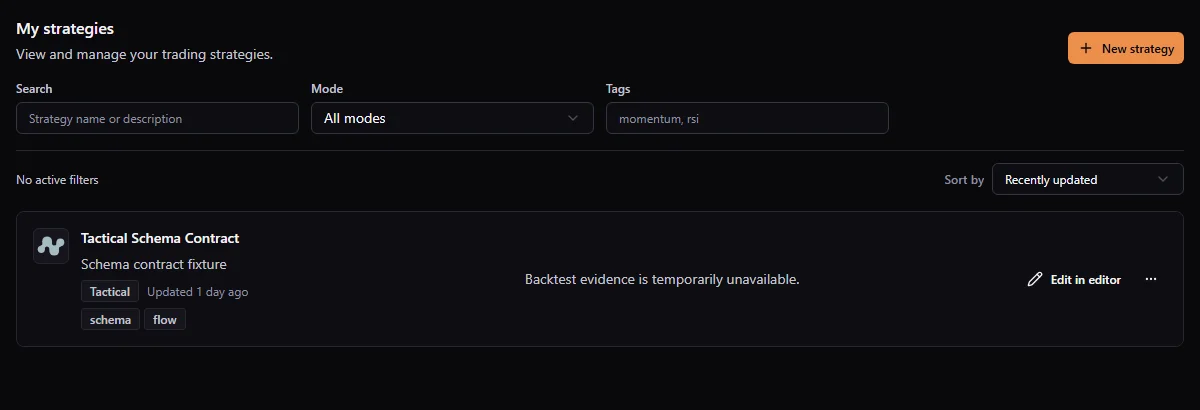
Open Strategies. Search by name or description, filter by Mode or comma-separated tags, and sort by update time, creation time or name. These controls combine: a name search inside a mode still returns only that mode. Clear the active controls if a known strategy disappears, then move through the result pages. A deployment filter is shown only when that filter is already present in the current list URL; it is not a standard control on the unfiltered list.
- Open the strategy name for Overview, Backtests and Versions. Overview distinguishes the latest attempt from the last completed result: a newer failed attempt does not replace the earlier completed evidence. Technical information, Sub-flows and Debug remain available as secondary tools.
- Choose Edit in editor to change the current graph.
- Use Strategy actions to edit its name, description or tags. These describe the strategy; its mode remains permanent.
- Duplicate creates a separate strategy from the current saved snapshot, description and tags. It uses another strategy slot. Give the copy a distinctive name before experimenting.
- Delete strategy removes the strategy and its saved versions from the active workspace after confirmation. Historical Backtests remain separate. A checkpoint within the deleted strategy is not an independent backup.
The list distinguishes No strategies yet (create your first one), No strategies match (clear filters), and Could not load strategies (retry). This matters before you duplicate or recreate a strategy: an empty filtered page is not proof that its saved graph is gone. On a strategy card, use Edit in editor for the graph or Strategy actions → Edit info for its name, description and tags. Editing the latter does not change the node graph.
An Active strategy status means it is present in your workspace. Read deployment separately; do not interpret Active or Saved as proof that a strategy is trading live.
Preserve versions
Use Save strategy for current changes and Save checkpoint for a named point you want to find again. In Version history, distinguish the current Main version from historical previews. Restoring a version changes the current strategy through a recorded restoration; previewing alone does not.
Version retention depends on plan and category. Do not assume every autosave is permanent. Read checkpoints and restore before replacing current work.
Change language and theme
Open the account menu (at the bottom of the standard dashboard sidebar, or in the Quant Hub header). Choose Language for English or Italian and the theme control for appearance. Settings → Profile also exposes profile and appearance options. Workspace language and documentation language are separate controls; product help opens the corresponding documentation language.
In the editor, Preferences controls canvas appearance locally. Preferences → Settings changes strategy settings after applying and saving them. Neither is the Backtest’s execution-cost configuration.
Read plan and usage
Open Settings from the account menu. Use Billing for current plan, billing status, payment method, recent invoices and available management actions. Use Usage for strategy slots, accepted Backtests, limits and the monthly reset date displayed in UTC. If a summary is stale or unavailable, refresh that section before relying on the displayed remaining capacity.
An accepted Backtest reserves quota while queued or running and uses it when completed. A failed or confirmed canceled run releases its reservation; deleting a completed result does not return that allowance. A strategy slot is occupied by a saved strategy or its duplicate. Check the current Usage view before creating a copy or submitting another run, because another user's plan or screenshot does not define your limits.
Plan, role and feature capability are distinct. Free, Pro and Elite are plans. Special account roles may have different access, so another user’s screenshot is not a guarantee for your account. Exact prices, quotas and retention are shown by the current product, not fixed by these guides.
Manage billing deliberately
From Billing, use Compare plans or Manage subscription when offered. Review the selected plan, interval, price and renewal information before confirming with the payment provider. Returning from checkout is followed by a verification step; wait for confirmed subscription status. Canceling a checkout does not by itself complete a subscription change.
For a payment problem such as past due, use the existing subscription’s recovery or billing-management action instead of trying to create a second subscription. Invoice history and downloads are available through the billing surface where offered. A data-load failure is not proof that no subscription exists. If Billing says details may be stale, use Refresh billing and wait for verification. If it says the subscription cannot be verified and needs support, follow that guidance; repeated refresh is not a resolution.
Account and security actions
Settings separates Profile, Account and Security. Profile changes such as display name need their own save confirmation. Email changes and account deletion, when enabled, use dedicated confirmation flows; read the stated consequences before confirming. Do not treat them as ordinary profile text edits.
For an account using email Magic Link, Change email can request confirmation at the new address when delivery is available. The current address remains in use until confirmation. For a Google-linked identity the same action can be disabled; follow the reason shown in the account screen. When Sign out other sessions is enabled under Security, it asks for confirmation and keeps this current session signed in. Use it after suspected access from another device, then check the success or error message rather than assuming the revocation happened. Delete account is a separate destructive confirmation and may be disabled until the server is ready for the operation.
Only enabled actions are available. A displayed avatar is not evidence that avatar upload is available; two-factor authentication may also be absent. Sign out ends access to this session, so confirm your work is saved first.
A practical route through the workspace
Suppose you want to test a saved idea and then inspect one market metric. From Home, open Strategies, search for the strategy by name and open its Overview. Check whether the latest attempt and latest completed Backtest differ. Open Edit in editor only if you need to change the graph; otherwise use its Backtests tab or Backtest Center to inspect the completed run. Return to the platform navigation and open Quant Hub to research the metric. Its chart is a separate research view, not data automatically attached to that historical Backtest.
If you cannot find the relevant menu, use the platform navigation or command palette where available. In-product documentation opens in a new tab so an unsaved editing session remains visible. Product language, documentation language and the Flow canvas appearance have separate controls.
When a control is locked or a page is empty
Check whether a filter, plan gate, feature status or temporary load failure explains the state. A locked feature may require a different plan, while Coming soon is not unlocked simply by upgrading. For a blank strategy list, clear search and filters before creating a replacement. For stale usage or billing information, refresh that specific panel; a failed request does not prove a zero balance, no subscription or a deleted result. For unsaved editor changes, use saving and conflicts before leaving the page.
Related documentation
- Your first steps in ScreebitsFind your way from a new account to a saved strategy, a simulation and metric research.
- Save and resolve conflictsProtect local edits, recover from offline or error states, and choose the correct version after a conflict.
- Use Backtest CenterFind runs, follow progress, understand statuses and manage saved results.