
Build an RSI Momentum Alert
Create the Starter strategy, change its threshold, validate it, save it, and reopen it.
First strategy · Step 4 of 10
This quickstart uses the available BTC/USD RSI Momentum Alert Starter. It watches one-minute BTC/USD bars, calculates RSI with a period of 14, and records an Alert when RSI is above 55 during a simulation. Saving the graph does not activate it or send an email. A Backtest records simulated Alert events without emailing the account.
Prerequisites
Sign in to a Screebits account with Flow Editor access, permission and plan capacity to create a Tactical strategy, and access to the RSI Momentum Alert Starter. Creating the copy uses a strategy slot. Its Tactical mode cannot be changed later. You can complete this exercise without submitting a Backtest.
What you will build
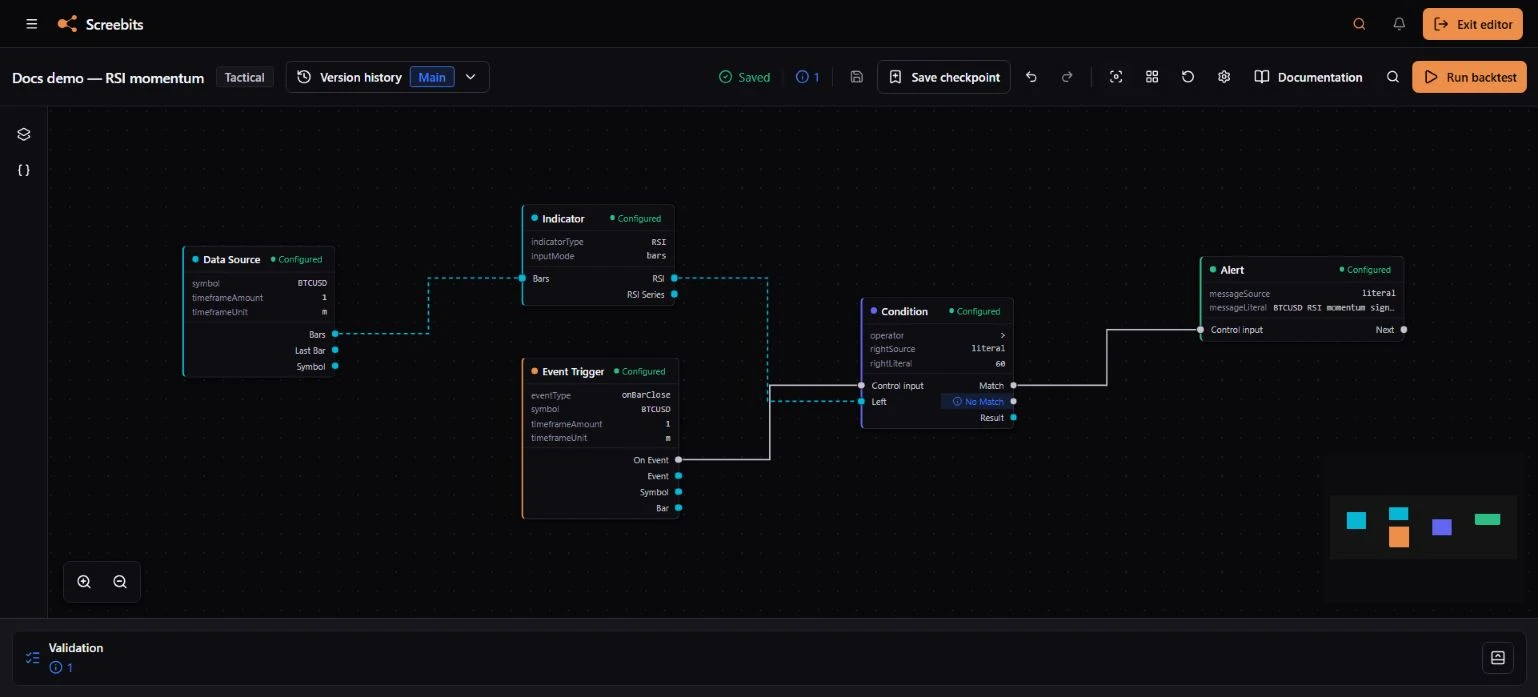
The graph contains five nodes:
- Event Trigger starts the control path when a one-minute BTC/USD bar closes.
- Data Source supplies one-minute BTC/USD bars.
- Indicator calculates RSI(14) from closing prices.
- Condition compares the RSI value with 55.
- Alert continues from Match and records the simulated message.
Event Trigger → Condition → Alert is the control path. Data Source → Indicator → Condition carries data and does not start the Alert by itself.
Create the Starter
- Open Strategies and choose New strategy. If the list is empty, choose Create first strategy instead.
- Select Tactical.
- Continue, enter Docs demo — RSI momentum, then continue to the starting point.
- In Starters, select BTC/USD RSI Momentum Alert.
- Create the strategy.
The Flow Editor opens with the five-node graph already arranged.
Inspect the graph
Select each node and open the Inspector:
- Event Trigger uses On Bar Close, BTCUSD, and a one-minute timeframe.
- Data Source uses BTCUSD and the same timeframe.
- Indicator uses RSI, period 14, and Close.
- Condition uses the greater-than operator and the literal value 55.
- Alert uses Account Email and a literal message.
Select a connection to confirm whether it is a control or data connection.
Change the threshold
- Select Condition.
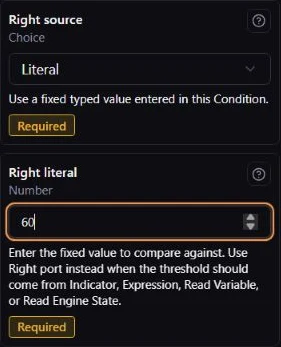
- In Parameters, change Right literal from 55 to 60.
- Press Tab to leave the field and apply the edit.
- Select Alert and, in Parameters, change Message to
BTCUSD RSI momentum signal: RSI is above 60.
Leave the Message field to apply it. The graph now has unsaved changes. The alert will match only when the connected RSI value is above 60, and its message now reports the same threshold.
This is a greater-than comparison on every evaluated bar, not a crossing detector. Several consecutive bars above 60 can each match. This alert-only graph contains no Order node, so a matching condition does not create a trade.
Validate and save
-
Open the validation area.
-
Resolve every blocking issue. The Starter begins with one primary activation and valid connections; changing the threshold and message should not alter those relationships. An Info item for the intentionally unused No Match branch is not a blocking error. You can turn off that outcome in the Inspector if you do not need it. Keep the Match connection.
-
Choose Save strategy, or use Ctrl+S or Command+S.
-
Wait for the saved state. Do not close the page while it reports saving, offline, conflict, or error.
Reopen the strategy
- Choose Exit editor to return to strategy details.
- Choose Edit in editor.
- Select Condition and confirm that the right-side value is 60.
- Select Alert and confirm that its literal message ends with
above 60.
You have now created, changed, validated, saved, and reopened a Tactical strategy.
Continue safely
Try changing the Alert message or use Quick add to explore compatible nodes. When the graph is saved and ready, follow Run a Backtest. A Backtest is a simulation, not a prediction.
Related documentation
- Get started with the Flow EditorUnderstand strategy modes, workspace areas, validation, and the save lifecycle before building.
- Connect nodesCreate a compatible control or data connection and verify the resulting path.
- Run a BacktestSave a ready graph, review Backtest inputs and costs, then submit the simulation.